


Features & Benefits
Canon Pixma TS6050 is a compact document and photo printer that allows you to print, scan and copy, all from this single unit. It helps you produce beautiful photographs and crisp text documents using either a USB cable or Wi-Fi. Canon’s FINE inkjet print technology and 5 single Canon Pixma TS6050 Ink Cartridges bring convenience, cost savings and great-looking prints. With this small-sized printer, you can experience a completely reimagined styling. Moreover, you will experience a reduced form factor, approx 30% smaller than previous equivalent models. It produces smart contrasting textures, rounded corners and tapering shades. Also, Canon has made the printer’s already-small frame appear even smaller so it can be moved anywhere around the home. This printer is suitable for home users as this is a superb machine inside and out.
With the Pixma range of printers, Canon has made it easy to print from your smartphone, tablet or computer. Also, the feature for supporting Mopri, Android and Apple AirPrint is a hit. Having multiple wi-fi options allows you to print your photos directly from Wi-Fi cameras, making photo printing quick and easy. Every function is handy with the manually adjustable front panel that features a 7.5 cm touchscreen. All the functions such as print, copy, scan, and other cloud functions are accessible from a single home screen.
Also, it uses PIXMA Cloud Link, Canon PRINT app, prints from popular social network and cloud services including Facebook, Instagram, Google Drive, Dropbox, OneDrive and many more. It enables you to even upload scanned documents and photos to these platforms. By using the optional high-capacity Canon XL Canon Pixma TS6050 Ink Cartridges, it lets you save as much as 30-40% per page compared to the standard ones. The 5 individual Canon Pixma TS6050 Ink Cartridges mean you’ll only need to replace the colour that has run out. Canon has kept this modal different from the other ones as it is compatible with Creative Park and Creative Park Premium software, letting you design and print greeting cards, calendars, photo collages and whatnot. Moreover, the Dual paper feeders allow users to simultaneously load photo paper in the rear feed whilst keeping plain paper in the front cassette.
Expert Verdict
There are two main uses of this wireless and all-in-one printer in the home: first to print photos and second to print documents. Canon’s PIXMA TS6050 has been made to fulfil both of these which makes it particularly an easy-to-operate printer to print using phones and mobile devices, as well as using cloud platforms. Its 5 single Canon Pixma TS6050 Ink Cartridges system is also a hit, as it allows you to replace the Canon Pixma TS6050 Ink Cartridges which run out of ink. Canon has redesigned its PIXMA range and reduced its desktop footprint with this printer. This TS6050 machine is around 30 per cent smaller than its predecessor and its neat styling helps to save a lot of space in the room. The top of its all-black case is built by the lid of its single-sheet flatbed scanner, an extendable, and a near-vertical paper feed pulling up from the rear of the top which can feed up to 20 sheets of photo or plain paper. The main paper feed of the printer slides into the bottom of the front panel. This paper feeder is able to take up to 100 sheets of plain paper, though photo paper can’t be fed from here.
The main part of the front panel slides in the upward direction and should be used in its horizontal orientation to allow for paper feed to pull out the output tray. The panel contains a 75mm touchscreen that has all of the information on the screen. This screen handles most of the controls of the machine, though it also has well-designed physical buttons for key features, including a Home button to return to the home screen. Coming to Canon Pixma TS6050 Ink Cartridges, This printer boasts five, single-colour Canon Pixma TS6050 Ink Cartridges clipped into place. When you lift the scanner section, you will find a pigmented black ink cartridge for printing text on plain paper, as well as a dye-based one for intensifying the darker hues in photos. Moreover, this Pixma model supports multiple software including Canon’s Image Garden and Creative Park Premium applications to provide basic support for all the printer’s functions. Though it lacks an NFC connection, there are free apps for iOS and Android which are simple and efficient.
Talking about its print quality and speed, on testing, we faced some trouble getting the Canon PIXMA TS6050 to print from its input tray. After a few trials, we found that it failed to pick paper correctly. However, when we shuffled and reloaded the paper, this problem appeared to be sorted out. The text and colour graphics document also prints very slowly, so none of the results will come close to the claimed speeds. The colour print speed is quite slow for this class of machine.
The quality of prints is pretty decent, with intense black text on plain paper, clean, well-saturated colours in business graphics and less than normal lightening of colours in a colour copy. Other than that, photo images are also sharp and natural, though some detail is lost in darker areas. What’s more, the Canon Pixma TS6050 Ink Cartridges are available in normal and high-yield versions and using the higher capacity Canon Pixma TS6050 Ink Cartridges gives accurate results which is far better than the device’s main competitors. Overall, Canon’s PIXMA TS6050 is a stylish machine and can be used with mobile devices and a PC. Although in testing it had an isolated paper feed problem, generally it’s an easy-to-use device and fits neatly on a desk or table. It’s neither the fastest nor cheapest printer to run, though it's in high demand in the market.
Review
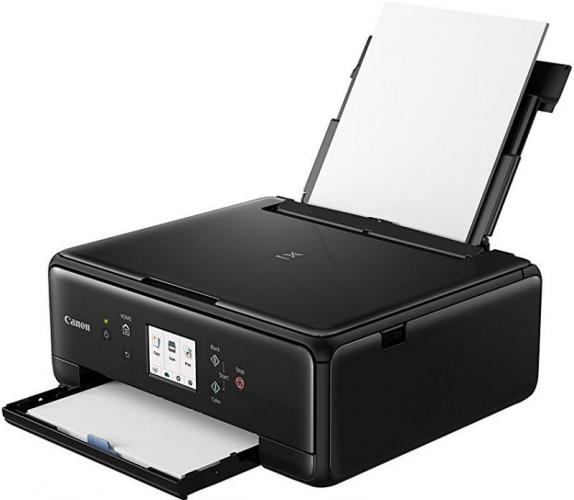 Canon Pixma TS6050 printer is a small, compact, desk-friendly printer with the multiple connectivity options. This easy to use printer provide good printing speed and top-quality photograph and document printing with optimum efficiency. The printer has 37.2cm x 31.5cm x 13.9cm dimensions with 6.2kg weight. It has a highly responsive touchscreen of 7.5cm, which make it incredibly easy to navigate the menu section.
With the FINE inkjet print technology, Pixma TS6050 printer produces the best possible printouts. For more flexibility, the machine uses 5 separate ink cartridges so that one can replace the ink cartridges which is finished. This curtails the running cost for the long term. Moreover, with the XL - Canon Pixma TS6050 ink cartridges one can save up to 30% per page in comparison to their standard equivalents.
The printer offers high printing and a scanning resolution of about 4800 x 1200 dpi and 1200 x 2400 dpi respectively. With wireless technology, one can print the document from smartphone, tablet, camera or PC with ease. Canon offers support for a range of remote printing applications including Apple AirPrint, Google Cloud Print and the Canon PRINT app for both iOS and Android.
Advantages
- Support wireless printing
- Automatic 2 - way printing
- Allow printing from Canon app and Cloud Print
- Can print multiple media type
- Exemplary print quality with good quality Canon Pixma TS6050 ink cartridges
- Average cost printer with multiple features
- Small and compact size printer
Disadvantages
- Does not have a memory card reader
- Missing “scan the email” feature
- Cannot fax the document
Canon Pixma TS6050 Ink Requirements
Printer ink for Canon Pixma TS6050 are as follows:

Canon Pixma TS6050 Black ink Compatible High Capacity Cartridge
Canon PGI570 Ink Cartridge Black with a print capacity of 500 Photos.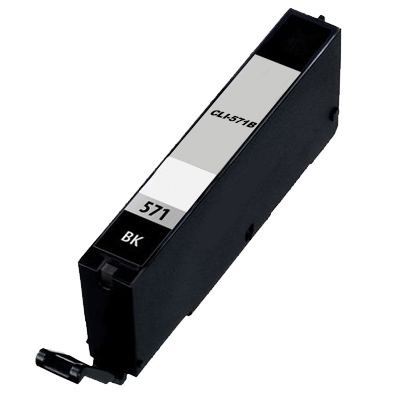
Canon Pixma TS6050 Black ink Compatible High Capacity Cartridge
Canon CLI571 Black Ink Cartridge with a print capacity of 895 Pages.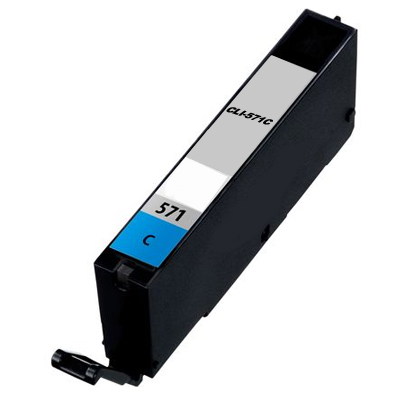
Canon Pixma TS6050 Cyan ink Compatible High Capacity Cartridge
Canon CLI571 Cyan Ink Cartridge with a print capacity of 680 Pages.
Canon Pixma TS6050 Magenta ink Compatible High Capacity Cartridge
Canon CLI571 Magenta Ink Cartridge with a print capacity of 650 Pages.
Canon Pixma TS6050 Yellow ink Compatible High Capacity Cartridge
Canon CLI571 Yellow Ink Cartridge with a print capacity of 680 Pages.
Canon Pixma TS6050 Grey ink Compatible High Capacity Cartridge
Canon CLI571 Grey Ink Cartridge with a print capacity of 289 Photos. Conclusion
 Conclusion
Canon Pixma TS6050 all-in-one printer provides exemplary output. Due to its compact size and lightweight, it can be used at home or at your office. Thanks to wireless connectivity, which make the printing process easy and convenient. If you are looking for the printer having a good rating and is cost effective, then you can trust this printer for sure.
How to check the status of ink on the touchscreen?
If you are not able to detect the exact amount of ink remaining in your Canon Pixma TS6050 Ink Cartridges, check the following steps in order to determine how one can examine the remaining amount of ink on the touchscreen
- Ensure that your home screen is displayed as you turn on the power. If the home screen is not displayed, press the button to display it.
- Click on the settings tab to Setup on the home screen using the operation panel. To get the details regarding this, refer your online user guide. The setup menu screen will then appear.
- Select the ink icon to determine the estimated ink levels. A symbol indicating low ink will appear in front of the area to display the information about the remaining ink level.
- If you notice that the ink is running low. Prepare for the new Canon Pixma TS6050 Ink Cartridges.
- The quality of the printout may not appear satisfactory if printing is continued under the condition of low ink cartridges. Therefore it is recommended to order the Canon Pixma TS6050 Ink Cartridges on time to overcome such issues.
Note: One can check the ink status on the touchscreen displayed while printing and can also check the ink status displayed on the computer screen.
How to load the originals on the platen glass?
To load them follow the steps below:
1. Open the document cover.
2. Load the original with its side facing down on the platen glass. Load the images according to your use.
Important: Check the following while loading the original on the platen glass.
- Make sure to not place any object that weighs 4.4 lb (2.0 kg) or more on the platen glass.
- Make sure to not put pressure of 4.4 lb (2.0 kg) or more on the platen glass.
3. Once loaded the original on the platen glass, make sure you close the cover before starting to copy or scan.