


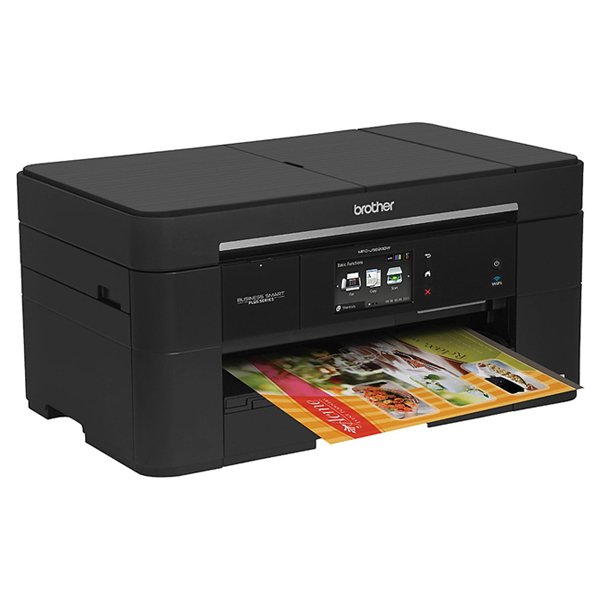
 The Brother MFC J5620DW is an inkjet multifunction printer that allows users to print at tabloid size. The printer offers duplex printing and wireless connectivity features. It has high engine speed allowing users to save time on printing. The printer has high yield Brother MFC-J5620DW ink cartridges which reduce the overall running cost of the printer.
The Brother MFC J5620DW has a sleek design with rounded vertical edges, weighing 25 pounds and measuring 19.3 x 13.6 x 9.4 inches. It has a 35 sheet ADF and a single-sheet flatbed scanner at the top. It has a 68mm touchscreen, along with three dedicated touch buttons. There is a 250 sheet paper tray at the bottom. The printer supports different connectivity options which include USB host, hi-speed USB, a PictBridge port, Wi-Fi and ethernet. It also supports stand-alone copying and has PC fax capability.
The device produces prints with a print speed of 35 ppm for monochrome documents and 27 ppm for colour files. The fax machine in this printer comes with a speed of 33.6 kbps along with the transmission speed of 3 seconds per page. It also supports Wi-Fi Direct, which allows for direct printing from compatible devices without the need to go through an access point. Through Brother Web Connect, you can connect to various services such as Facebook, Flickr, Dropbox, Box, Google Drive, and Evernote.
Advantages:
- Supports wired and wireless connectivity
- High print speed
- High capacity Brother MFC J5620DW ink cartridges
- Supports mobile printing capabilities
- Supports tabloid size printing
- ADF support
- Automatic duplexing
- Supports Wi-Fi Direct
Disadvantages:
- Lacks direct printing from memory card
- Limited paper handling capacity
- Lacks additional input trays
BROTHER MFC J5620DW Ink Requirements
Printer ink for Brother MFC J5620DW are as follows:
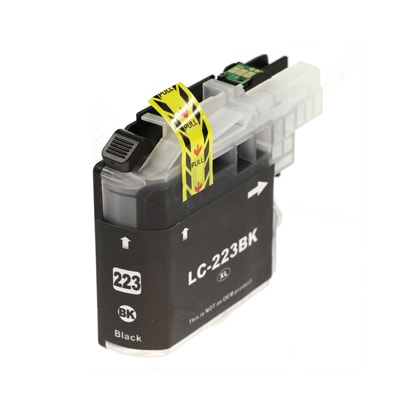
BROTHER MFC J5620DW Black ink Compatible LC223 High Capacity Cartridge
Brother LC223 Ink Cartridge Black with a print capacity of 550 Pages.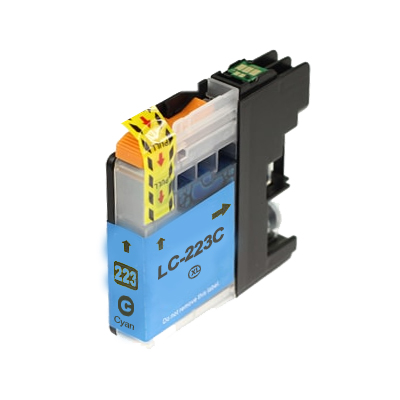
BROTHER MFC J5620DW Cyan ink Compatible LC223 High Capacity Cartridge
Brother LC223 Ink Cartridge Cyan with a print capacity of 550 Pages.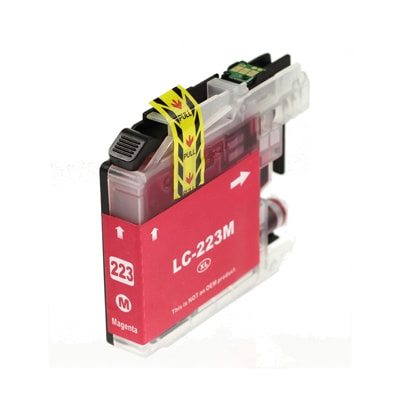
BROTHER MFC J5620DW Magenta ink Compatible LC223 High Capacity Cartridge
Brother LC223 Ink Cartridge Magenta with a print capacity of 550 Pages.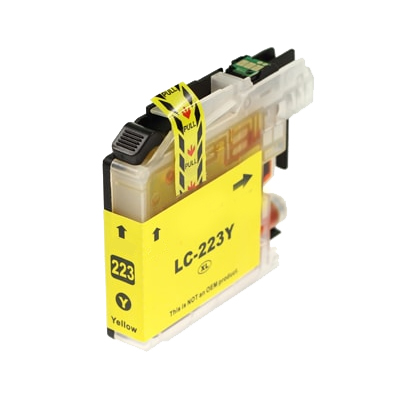
BROTHER MFC J5620DW Yellow ink Compatible LC223 High Capacity Cartridge
Brother LC223 Ink Cartridge Yellow with a print capacity of 550 Pages. Conclusion:
 Conclusion:
The Brother MFC J5620DW is a capable multifunction printer with good features such as automatic duplexing, wired and wireless connectivity, mobile printing capabilities and tabloid size printing. It produces clean and clear outputs with high printing skills. However, the device cannot be considered for large workgroups as it lacks optional paper input trays which limit the productivity for bulk printing.
How to Check the Print Quality of a Brother MFC J5620DW Printer?
Brother MFC J5620DW is a great home office and small office printer. It produces great quality text and image prints and offers advanced features like PC-free printing, mobile printing etc. Even when the device boasts good printing technology, you can face a few printing issues. Which are not always a hardware problem but could be a result of dried out / empty Brother MFC J5620DW ink cartridges or blocked printhead.
If faded or streaked colours and text appear on your printouts, it is possible that some of the print head nozzles of the device are clogged. You can check this by printing the Print Quality Check Sheet and looking at the nozzle check pattern.
Follow the steps below:
- On the control panel screen select either the ink icon or the tools icon next to it.
- Then go to Maintenance and press Improve Print Quality.
- Press Check Print Quality.
- Following the instructions on the Touchscreen, load Letter or A4 size plain paper in the paper tray, and then press OK. The machine will print the Print Quality Check Sheet.
- Check the quality of the four colour blocks (for colour Brother MFC J5620DW ink cartridges) on the sheet.
- The Touchscreen displays a message asking about the print quality. Do one of the following:
- If all lines are clear and visible, press No to finish the Print Quality check, and then go to step 10
- If you see missing short lines in the pattern printed on the sheet then press Yes to continue with the troubleshoot
- The Touch Screen will then prompt you to check the print quality of each colour. You will see 4 types of patterns on the screen to match the printed output. Follow the instructions on the Touch screen, and press 1, 2, 3 or 4 to select the image example most similar to the Print Quality Check Sheet for each colour.
- If you press number 2, 3, or 4, the Touch Screen prompts you to start cleaning the printhead. Press Start.
- After the cleaning procedure is finished, press Yes, and return to step.
- Press home button to finish the troubleshoot.
To get the optimum result you would need to run the cleaning process more than three times. If you have clean the printhead at least five times and the print has not improved, try installing a new Brother MFC J5620DW ink cartridges for each colour with the problem. Try cleaning the print head up to five more times. If the print has not improved, contact Brother Customer Service.