


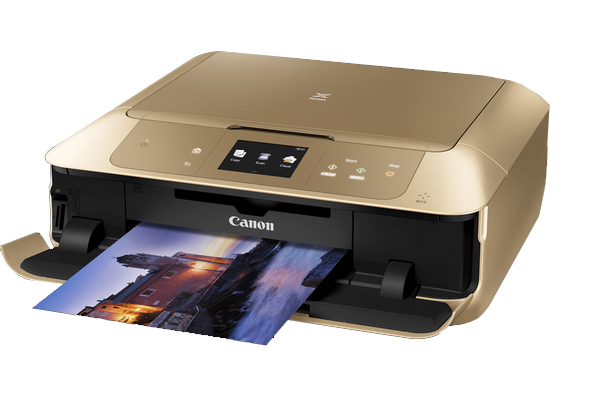
 The Canon Pixma MG7753 printer in gold colour has the ultra-modern design that boosts aesthetic. This Pixma printer has 435 x 370 x 148 mm dimensions with 7.9 Kg weight. Hence, make it suitable for the home and small office printing jobs. On top of the printer there is a scanner unit along with the control panel, which has an 8.8cm LCD display for easy navigation.
This printer incorporates a 6-ink system, to create impressive prints. When best quality Canon Pixma MG7753 ink cartridges are used, the print quality of your printouts takes another level. This printer is said to be the cost-effective choice as the printer is designed in such a way that one needs to replace only the expended ink cartridges of the desired color.
If the latest technology is your concern, then Canon printers are the best pick for you! The intuitive touch control is designed to provide high quality and speed. Not only this, one can easily connect the printer with mobile devices, camera (via PictBridge), and cloud services. If you do not want to leverage wireless connectivity then, Ethernet and USB connections are also there to maintain the traditional printing trend. The printer can take prints from computers with Window and MAC as their operating system.
Advantages
- Compact printer with modern design.
- High printing and scanning result.
- Cost-effective printing of documents by using good quality Canon Pixma MG7753 ink cartridges
- Support wireless printing with Wi-Fi and AirPrint support
- Money-valued printer
- Integrated memory card reader and also supports PictBridge
- Built-In Auto Duplex Printing
- Allow borderless printing
Disadvantages
- Slow printing speed
- Low paper handling capacity
- Cannot fax the document
Canon Pixma MG7753 Ink Requirements
Printer ink for Canon Pixma MG7753 are as follows:

Canon Pixma MG7753 Black ink Compatible High Capacity Cartridge
Canon PGI570 Ink Cartridge Black with a print capacity of 500 Photos.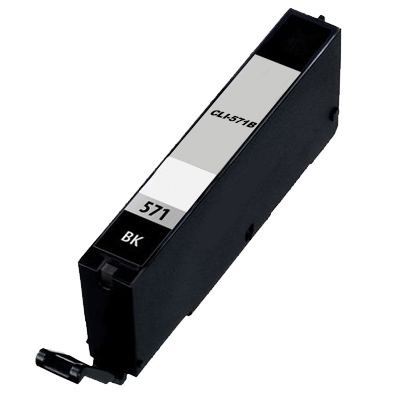
Canon Pixma MG7753 Black ink Compatible High Capacity Cartridge
Canon CLI571 Black Ink Cartridge with a print capacity of 895 Pages.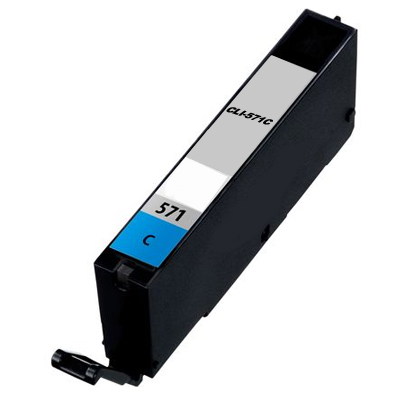
Canon Pixma MG7753 Cyan ink Compatible High Capacity Cartridge
Canon CLI571 Cyan Ink Cartridge with a print capacity of 680 Pages.
Canon Pixma MG7753 Magenta ink Compatible High Capacity Cartridge
Canon CLI571 Magenta Ink Cartridge with a print capacity of 650 Pages.
Canon Pixma MG7753 Yellow ink Compatible High Capacity Cartridge
Canon CLI571 Yellow Ink Cartridge with a print capacity of 680 Pages.
Canon Pixma MG7753 Grey ink Compatible High Capacity Cartridge
Canon CLI571 Grey Ink Cartridge with a print capacity of 289 Photos. Conclusion
 Conclusion
All-in-one Canon Pixma MG7753 printer is widely used in office and house due to its small and manageable size. This Excellent specs, intuitive touch controls, and rich connectivity options make this printer the best amongst all. With the improved colour development technology which includes grey ink, one can easily print superb monochrome images. Also the special black pigment provides clear text and impressive prints. Canon Pixma MG7753 printer has proven to be one of the best printers to unleash the creative potential with awestruck print quality.
What should I do if no ink comes out of the Canon Pixma MG7753 printer?
If your printer is too old and you haven’t print anything from a long period, it might be possible that Canon Pixma MG7753 ink cartridges used are dried up or the printheads got clogged. To check the exact issue do the following:
1. Has ink run out?
In such a situation open the operation panel and check the ink lamp. Refer your online manual to check the ink status.
2. Orange tape or protective film still remain on the Canon Pixma MG7753 ink cartridges?
In this case, make sure that the protective film is peeled off in order to expose the Y-shaped air hole. If you found tape still remain on the ink tank, just peel it off.
3. Are print head nozzles clogged?
Print the nozzle check pattern in order to determine whether the ink ejects appropriately from the print head nozzles. To get more details on printing the nozzle check pattern, print head cleaning, and print head deep cleaning, check the online user manual supplied with the printer.
- If the nozzle check pattern is not printed correctly, check if the ink tank for the required colour is empty.
- If the Canon Pixma MG7753 ink cartridges are not empty, perform print head cleaning and then try printing the nozzle check pattern again.
- If the problem is still not resolved after performing print head cleaning twice perform print head deep cleaning.
- If you notice that the issue is still not resolved even after performing print head deep cleaning, turn off the machine and perform print head deep cleaning again 24 hours later
- If performing the print head deep cleaning does not resolve the problem, in that case, the print head might be damaged. Contact the nearest service center for your printer and request for a repair.