


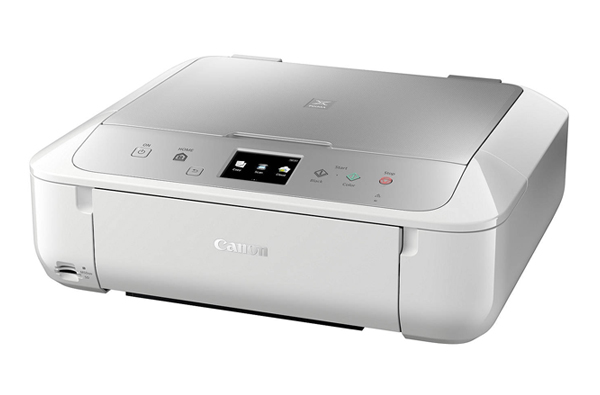
 Canon Pixma MG6853 slightly goes out of the Canon range to offer a creamy white finish to the home users. The machine is a 5-ink all-in-one inkjet that prints, copies and scans smartly while offering WiFi Direct.
As far as the weight and dimensions are concerned, it is 6.4 kg and 45.5 x 36.9 x 14.8 cm (WxDxH), respectively. With this, the device can be easily stored in a closet. A large 7.5-inch colour touchscreen and user-friendly control panel make the multifunction job easier. The device enables you to print straightaway from a smartphone or tablet with a resolution of up to 4800 dpi. You can even print impressive quality photos stored in memory cards or digital camera speed up to 15 ppm for mono and 9.7 ppm for colour. Additionally, Canon Pixma MG6853 Ink Cartridges backed by Canon’s FINE technology further enhance quality. The three-in-one machine is compatible with some of the versions of Windows and Mac OS.
Advantages
- User-friendly interface
- Large touchscreen
- Good quality printing
- Wireless connectivity available with WiFi Direct
- Support for Automatic duplexing
- Print via Cloud and smart devices
- Photo printing via memory cards and digital camera
Disadvantages
- Lacks fax function
- Lacks Automatic Document Feeder
- Cannot print A3 size text and images
Canon Pixma MG6853 Ink Requirements
Printer ink for Canon Pixma MG6853 are as follows:

Canon Pixma MG6853 Black ink Compatible Cartridge High Capacity
Canon PGI570 Ink Cartridge Black with a print capacity of 500 Photos.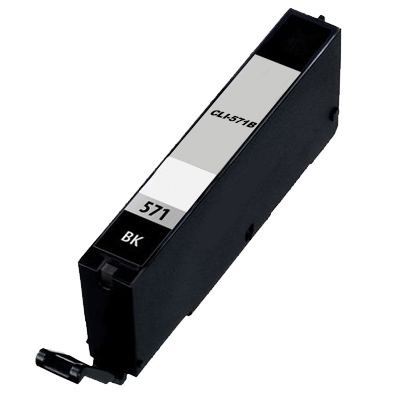
Canon Pixma MG6853 Black ink Compatible Cartridge High Capacity
Canon CLI571 Black Ink Cartridge with a print capacity of 895 Pages.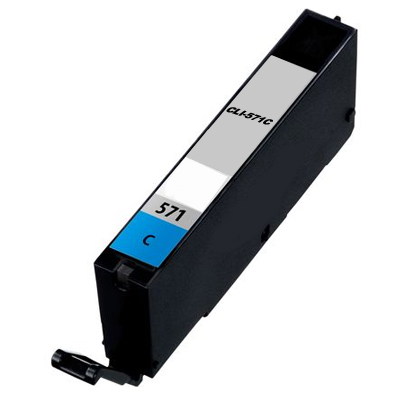
Canon Pixma MG6853 Cyan ink Compatible Cartridge High Capacity
Canon CLI571 Cyan Ink Cartridge with a print capacity of 680 Pages.
Canon Pixma MG6853 Magenta ink Compatible Cartridge High Capacity
Canon CLI571 Magenta Ink Cartridge with a print capacity of 650 Pages.
Canon Pixma MG6853 Yellow ink Compatible Cartridge High Capacity
Canon CLI571 Yellow Ink Cartridge with a print capacity of 680 Pages. Conclusion
 Conclusion
Canon Pixma MG6853 offers more than just printing, scanning and copying. It stands out from other same range printers due to Canon Pixma MG6853 Ink Cartridges that are available in 5 colours with the fifth being pigment black which is primarily added to provide crisp and sharp quality output. The inkjet multifunction printer is apt for home users who would like to print photos and text directly from Cloud and smart mobile devices. But does not fit the requirements of business users.
How to save the colour Canon Pixma MG6853 ink cartridges, while the need is of monochrome prints?
During the printing process, colour ink cartridges are also included for monochrome prints. The device offers full-colour printing due to the default setting in the printer driver window i.e. colour. Therefore, the machine will automatically mix the colours from Canon Pixma MG6853 ink cartridges to produce a selected colour (including the black colour printing).
To save the colour Canon Pixma MG6853 ink cartridges, when your requirement is of grayscale printing, you have to change the media type and printing preference. To obtain “Grayscale” as the printing preferences, and "Plain Paper" as the media type, please follow the below steps:
Note: The screens may differ. It depends on the operating system and also on the Brother machine you are using.
For Window users:Step 1: Select the start menu and open control panel.
Step 2: Select devices and printers. In that menu, search for your printer model and right-click to open printer properties.
Step 3: In the printing preference tab, click the advanced tab.
Step 4: Change the colour/grayscale settings to grayscale.
Step 5: Now further open basic tab and choose plain paper as the media type. Before that, make sure that the Slow Drying Paper is unchecked.
For Macintosh Users:Step 1: In the main menu, select system and preferences and then view printer and scanners (or print, scan & fax).
Step 2: In that look for your printer.
Step 3: Right-click to view print dialogue box (i.e. printer driver window).
Step 4: Select the printer setting in the print dialogue box.
Step 5: Change the media type to plain paper and ensure that the Slow Drying Paper is not ticked.
Step 6: Also, change Color/Grayscale setting to grayscale.
In case, you are not satisfied with the print quality, you can open the printer driver window and reset the settings to default settings.